Day 17 (Part 2) — Git & GitHub: What is GitHub? Complete Beginner Guide with Steps
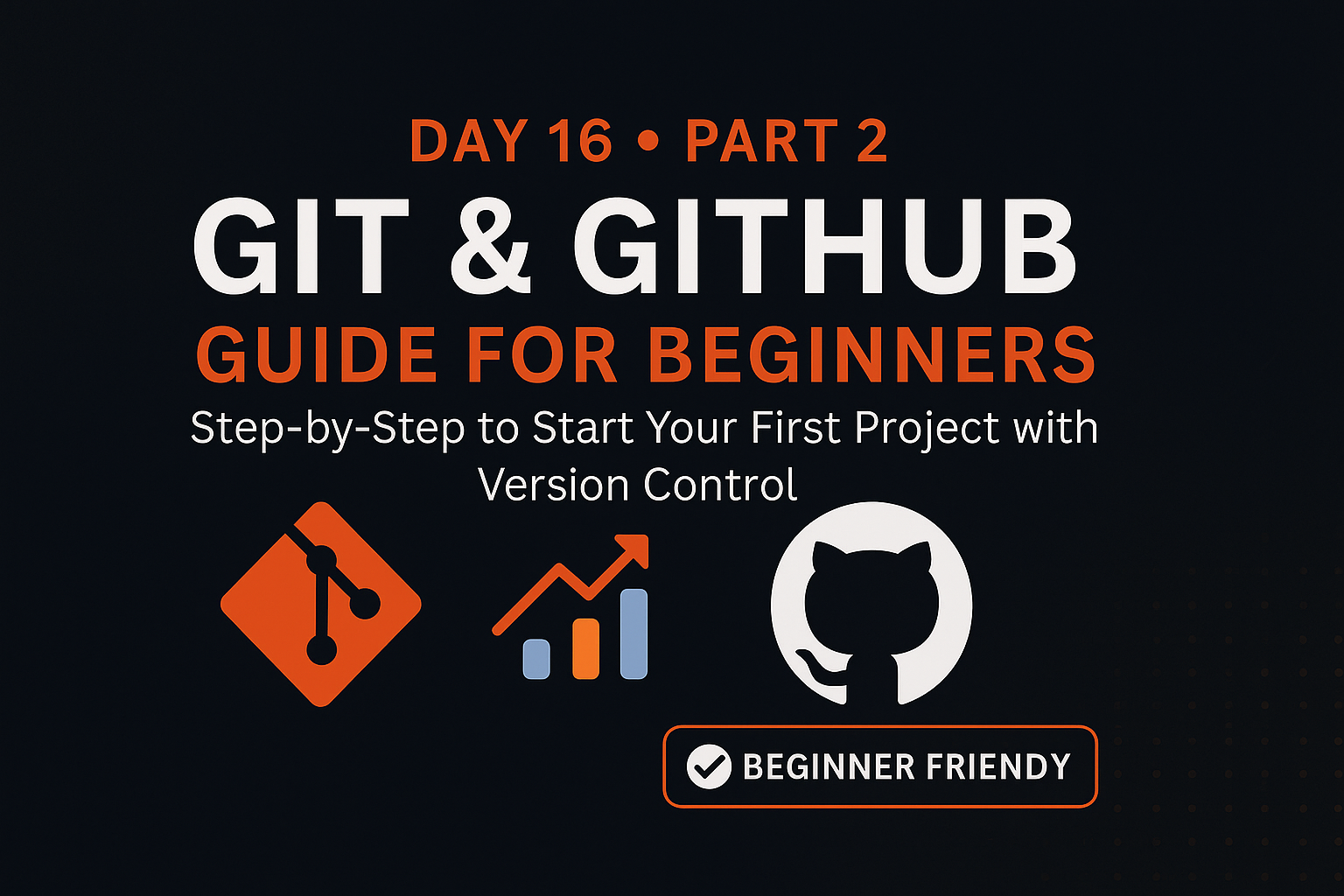
What is GitHub?
GitHub is an online platform that acts as a cloud-based version control system. While Git manages code locally on your system, GitHub allows you to host your code online — making it easy to collaborate, back up, and showcase your work globally.
In simple words:
Git is like saving a photo on your phone, while GitHub is like uploading it to Instagram so the world can see it, like it, and comment on it.
For developers, GitHub helps:
Backup your code online.
Showcase your proof of work.
Collaborate with others on open-source or private projects.
🛠️ How to Use GitHub — Step-by-Step Guide
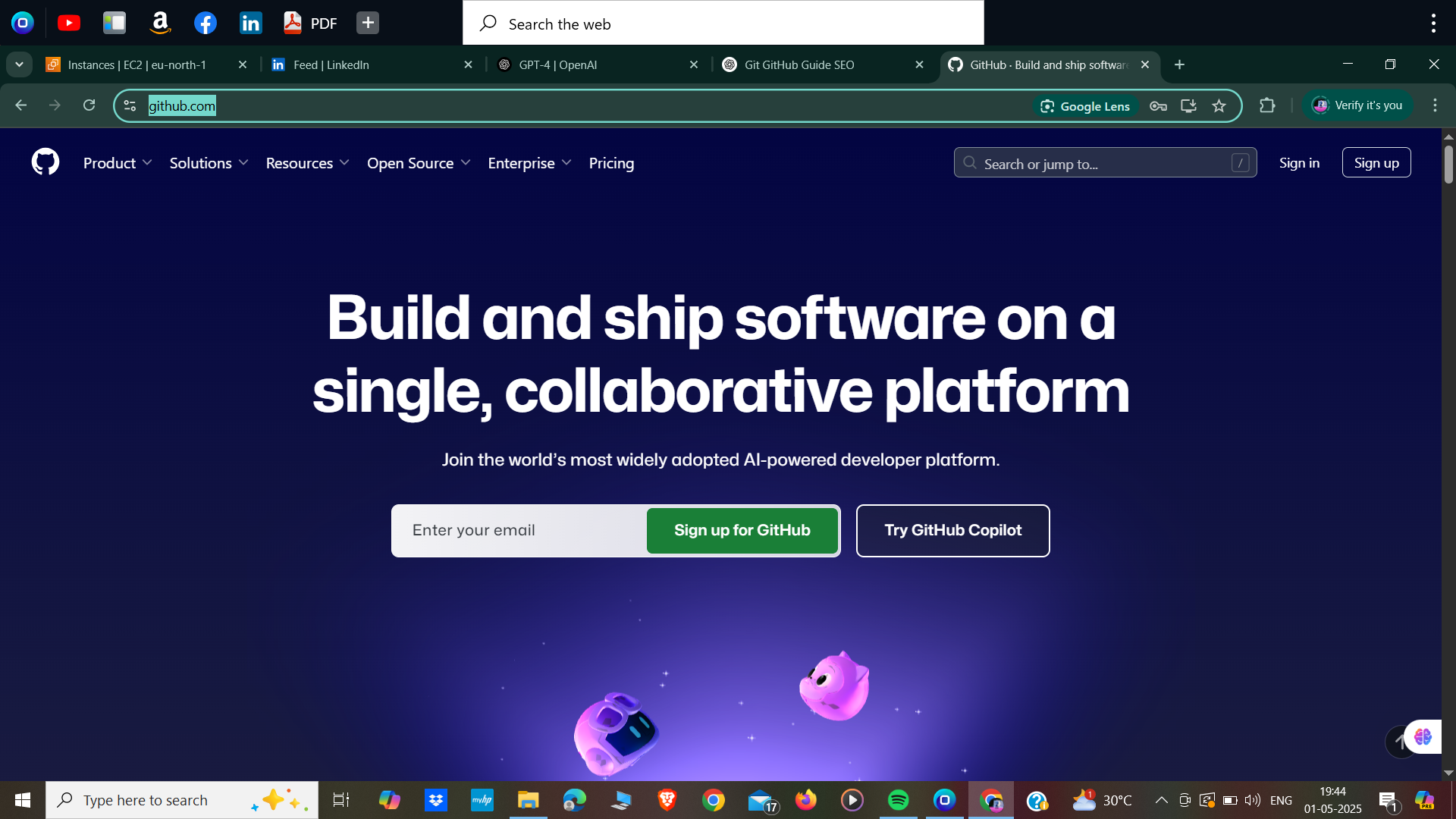
✅ Step 1: Visit GitHub
Go to https://github.com
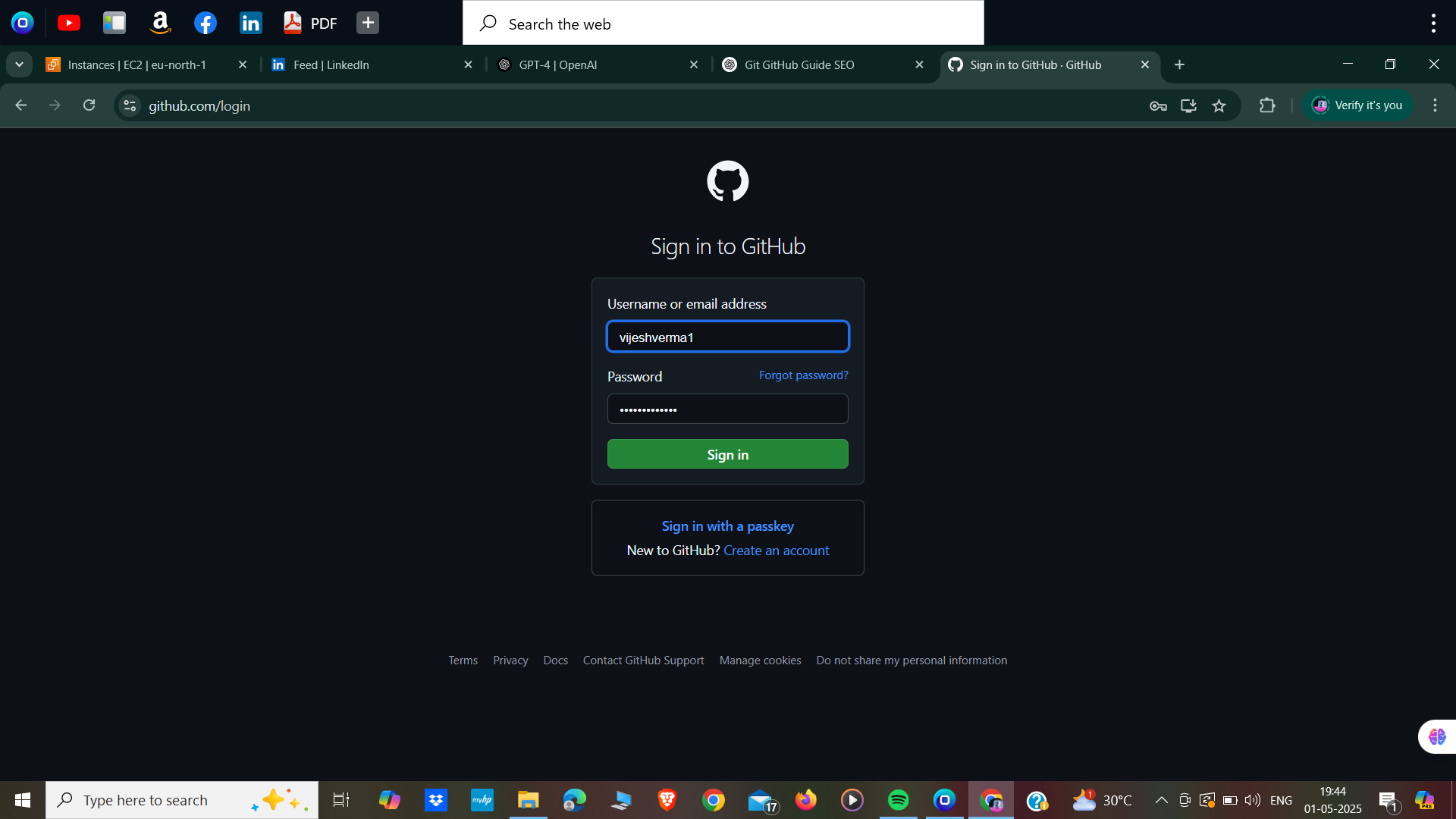
✅ Step 2: Create or Sign In to an Account
If you already have an account, just log in. Otherwise, click on Sign up to create a new one.
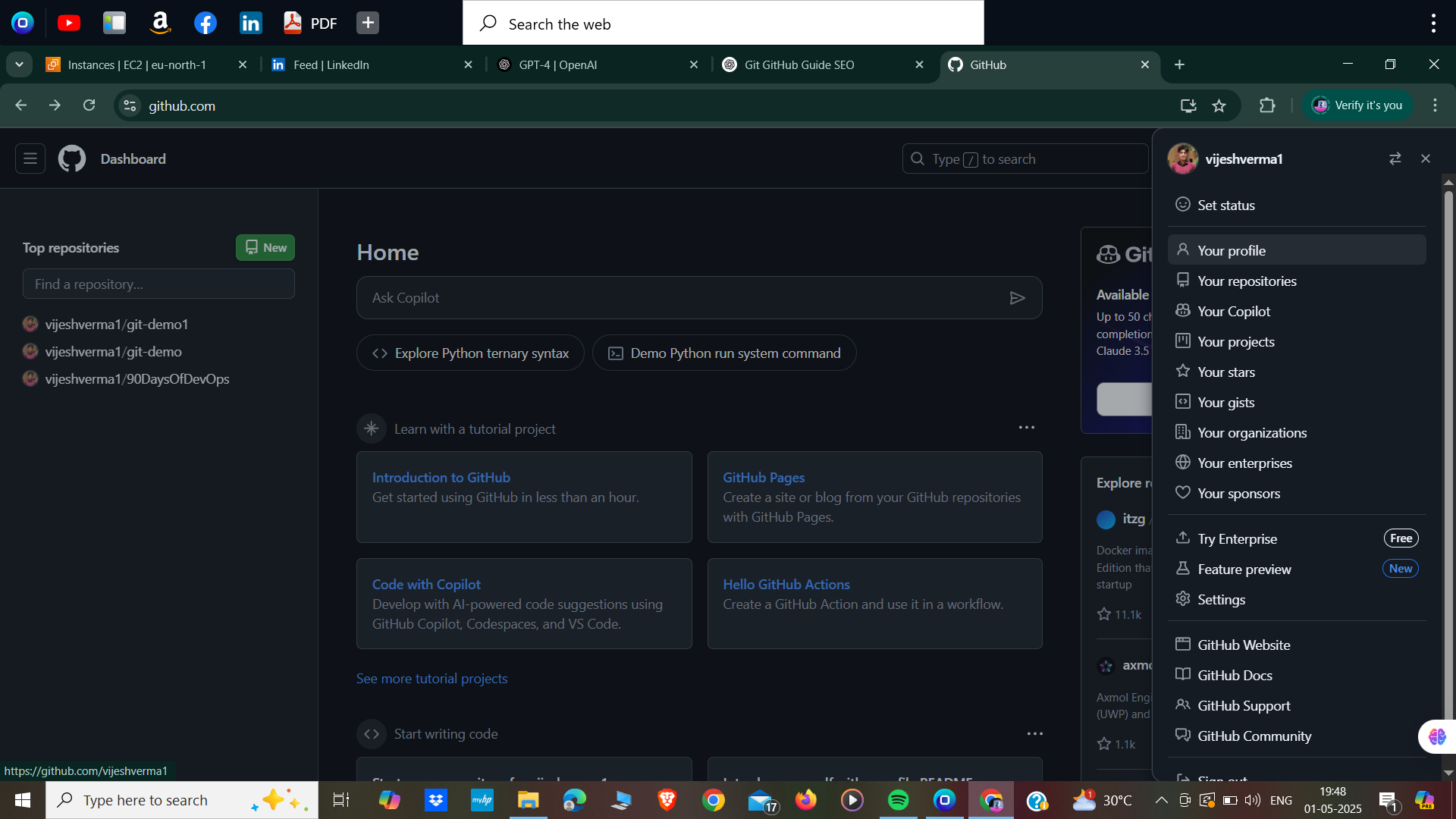
✅ Step 3: Go to Your Profile
Click on the profile icon on the top right → then click on Your profile.
✅ Step 4: Go to Repositories
Once you're inside your profile, click on the Repositories tab.
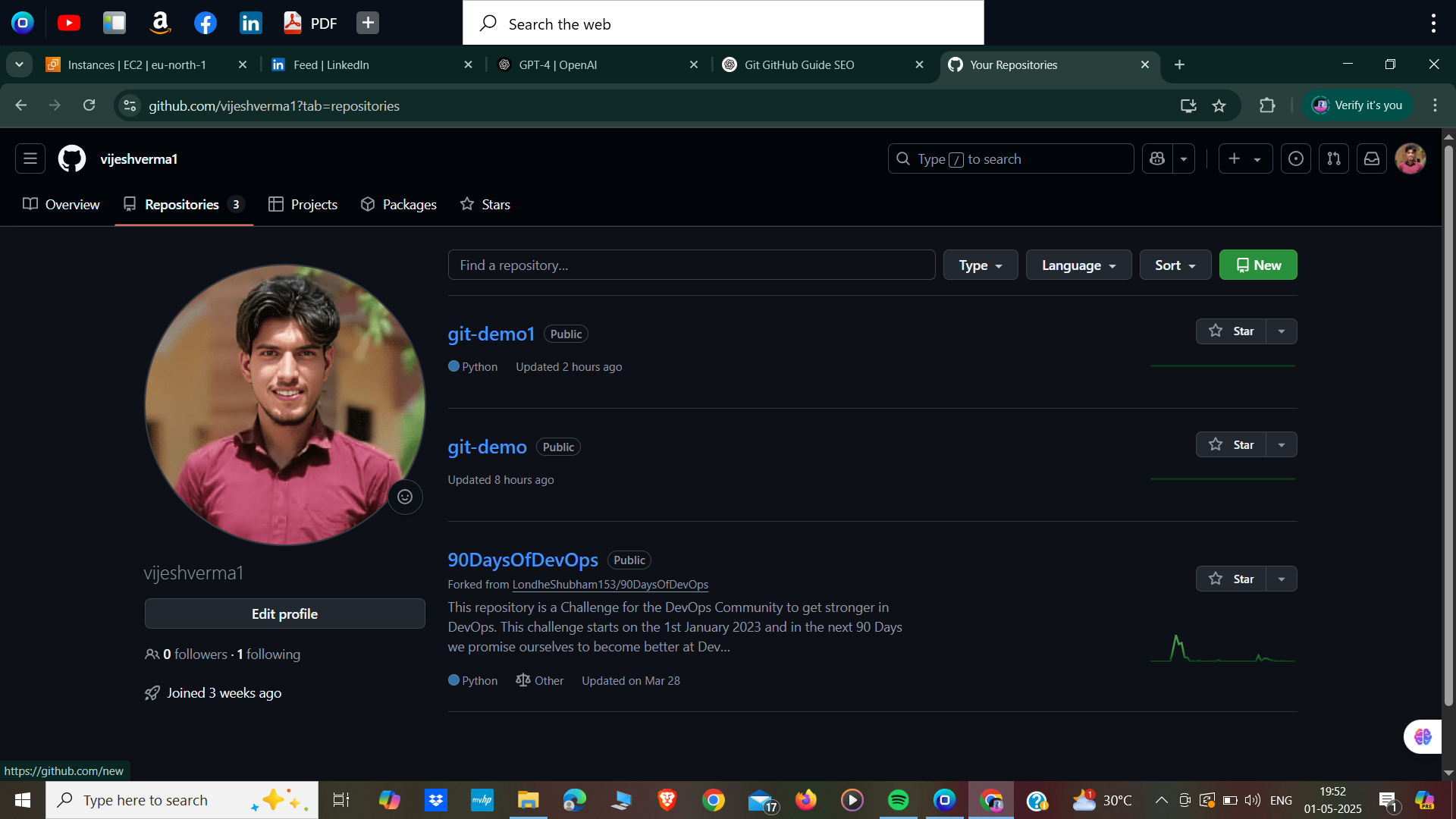
✅ Step 5: Create a New Repository
Click on the green “New” button on the left sidebar.
You can choose:
Repository Name
Public or Private visibility
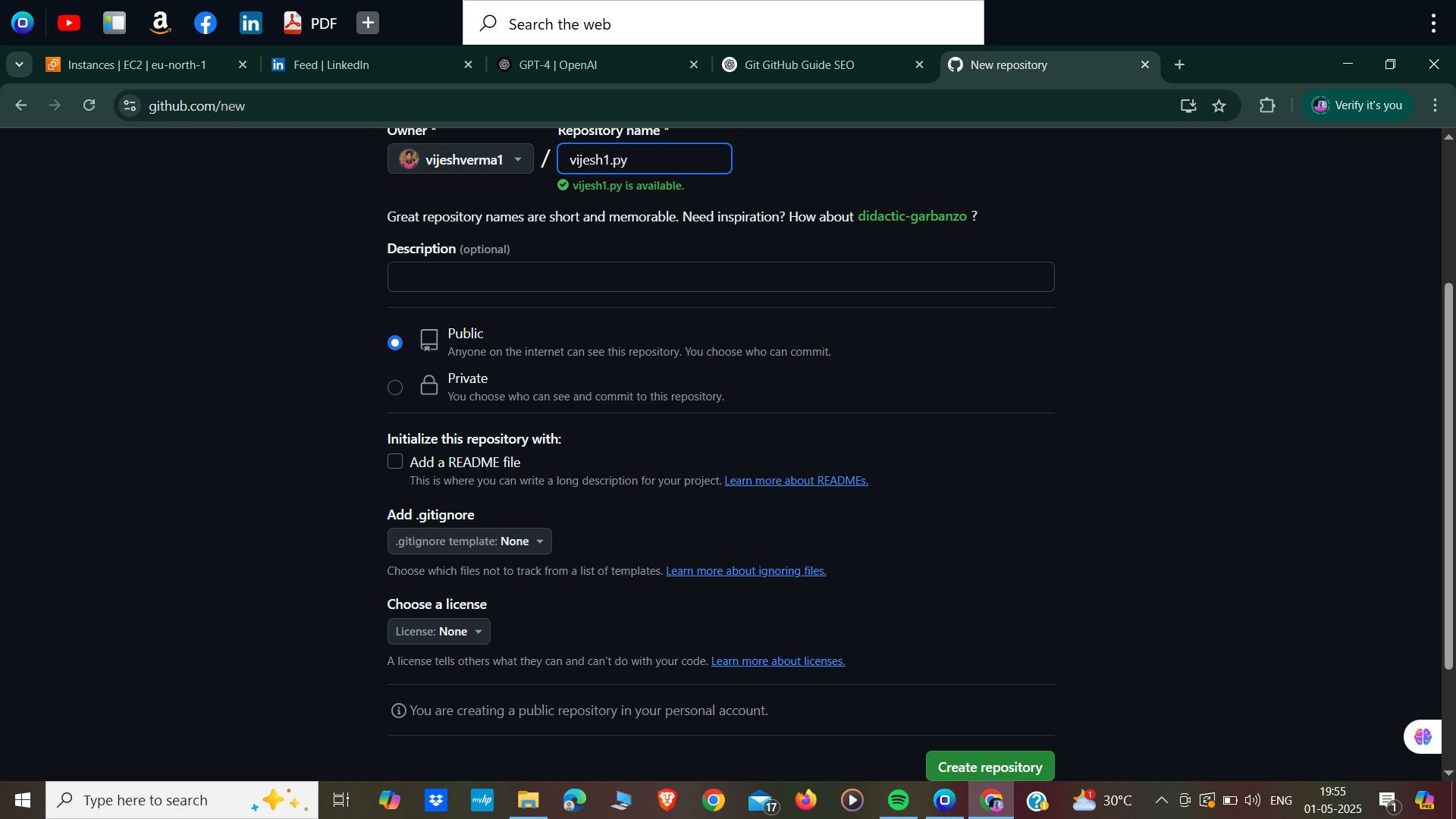
✅ Step 6: Set Up Your Repository
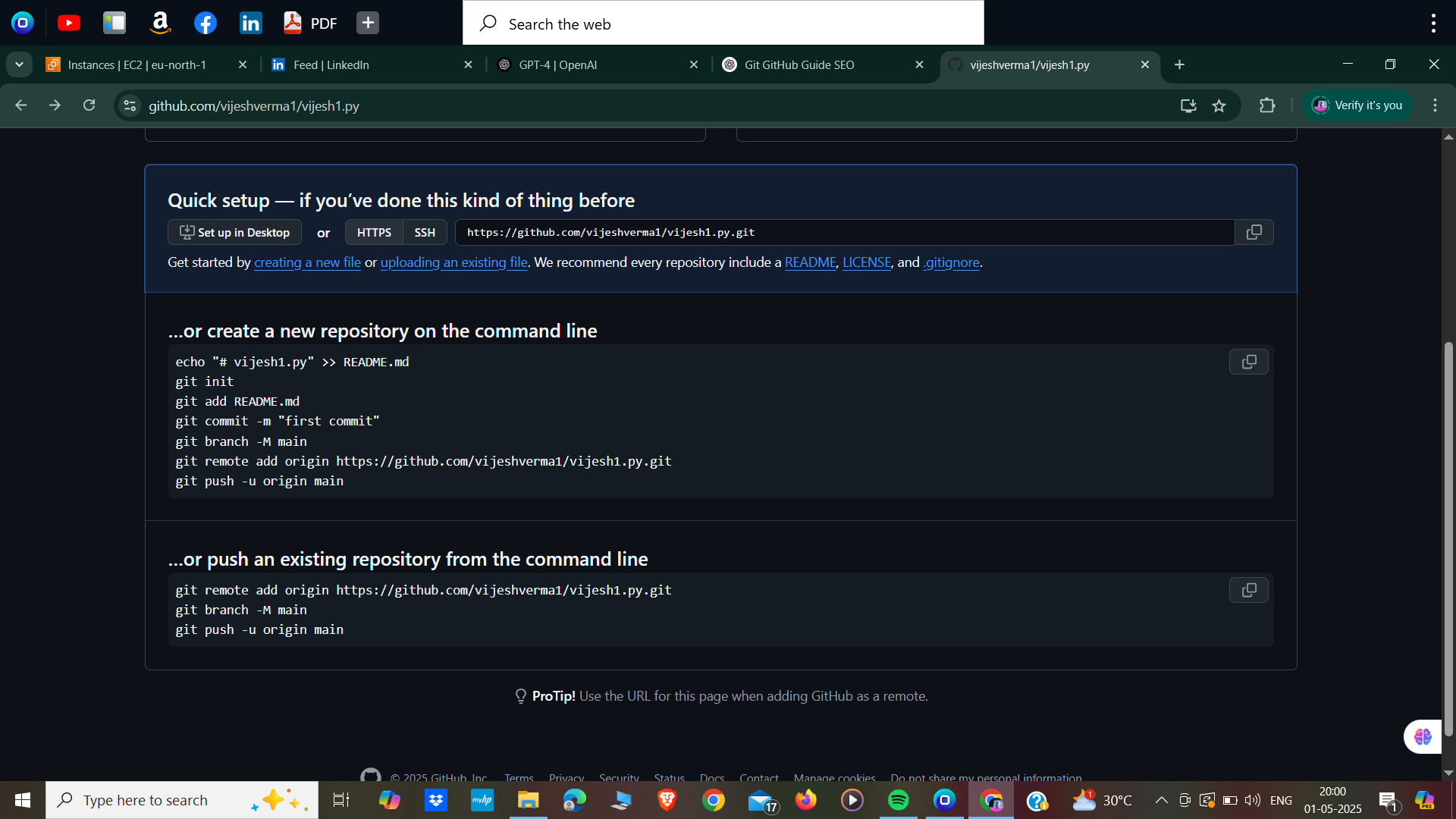
Once created, you'll get:
SSH or HTTPS link for remote access
Option to create files like README.md
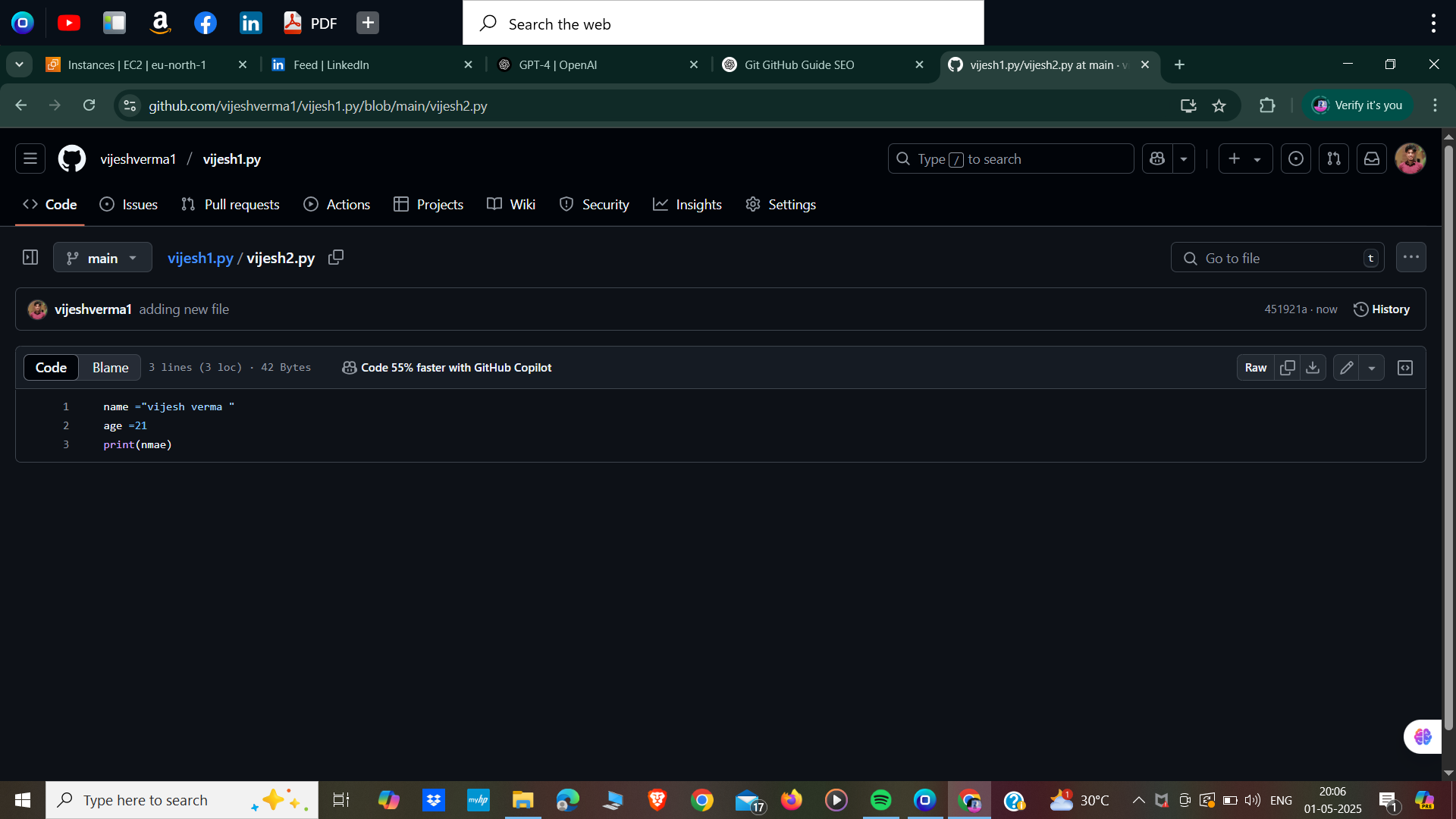
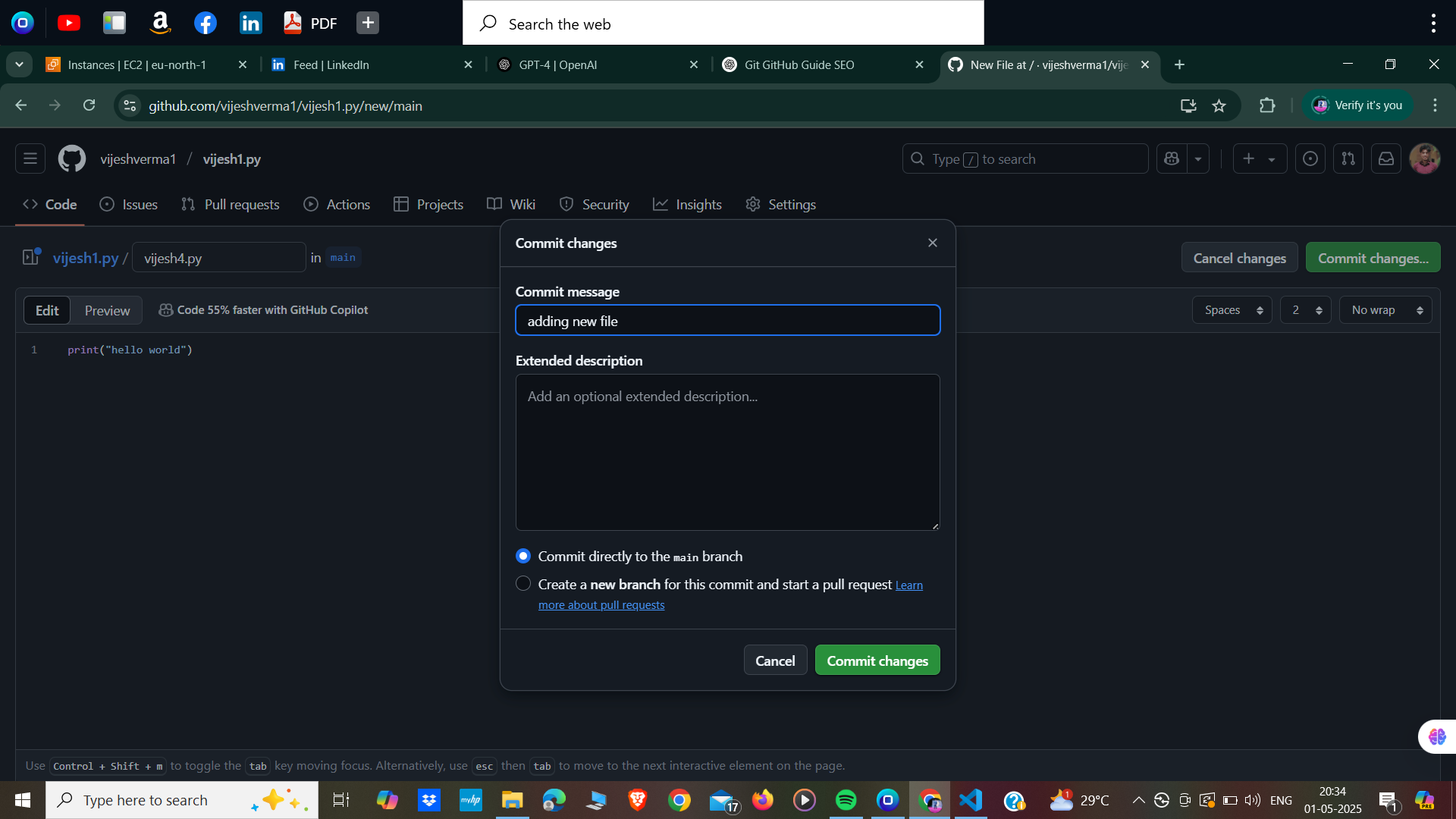
✅ Step 7: Create a File on GitHub
Click on Create New File.
When you commit the file, Git runs two main actions in the background:
First, it adds the file.
Second, it commits the file with your message.
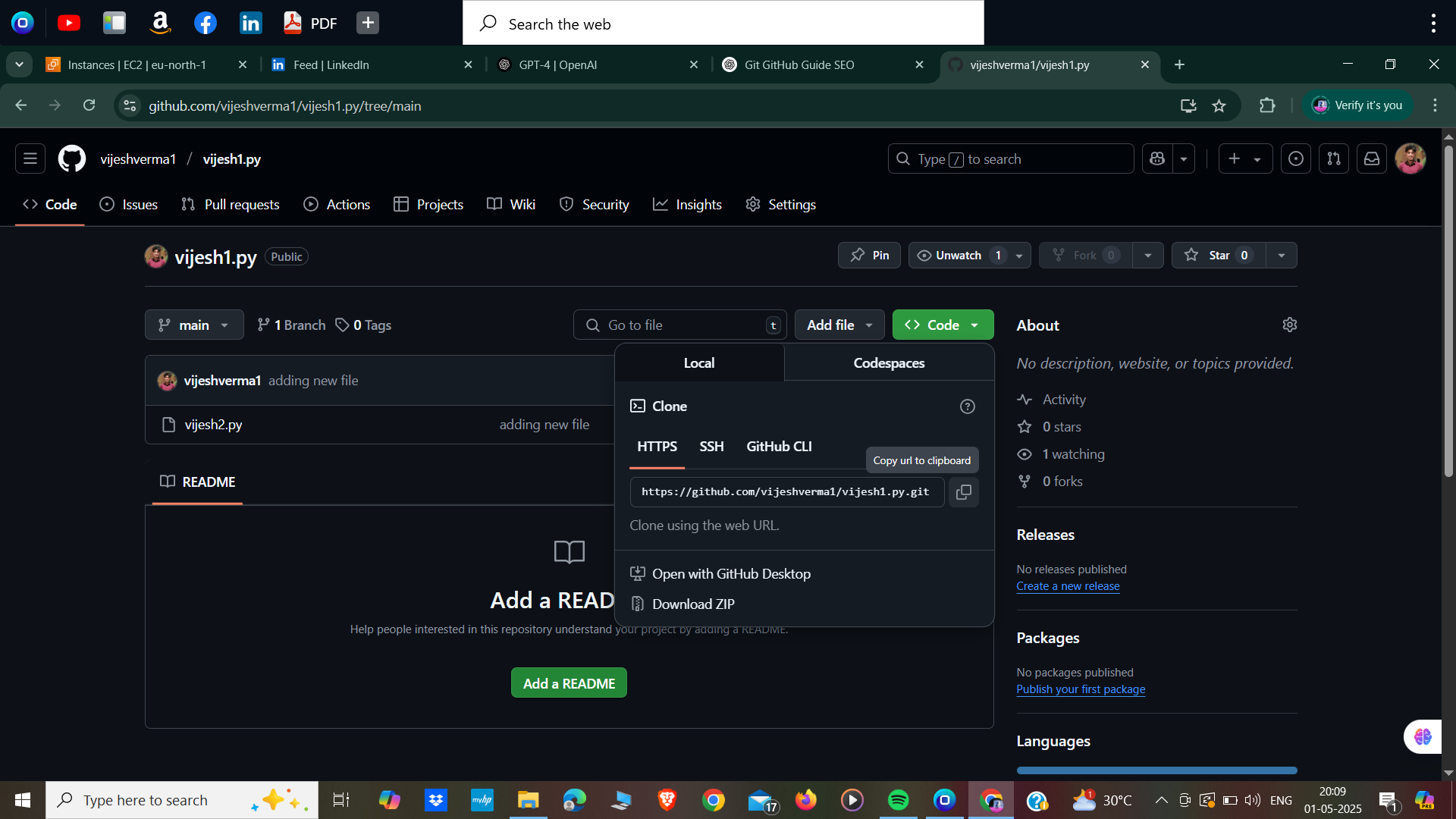
✅ Step 8: Copy the Repository Link
To work locally, copy the HTTPS/SSH link of the repository.
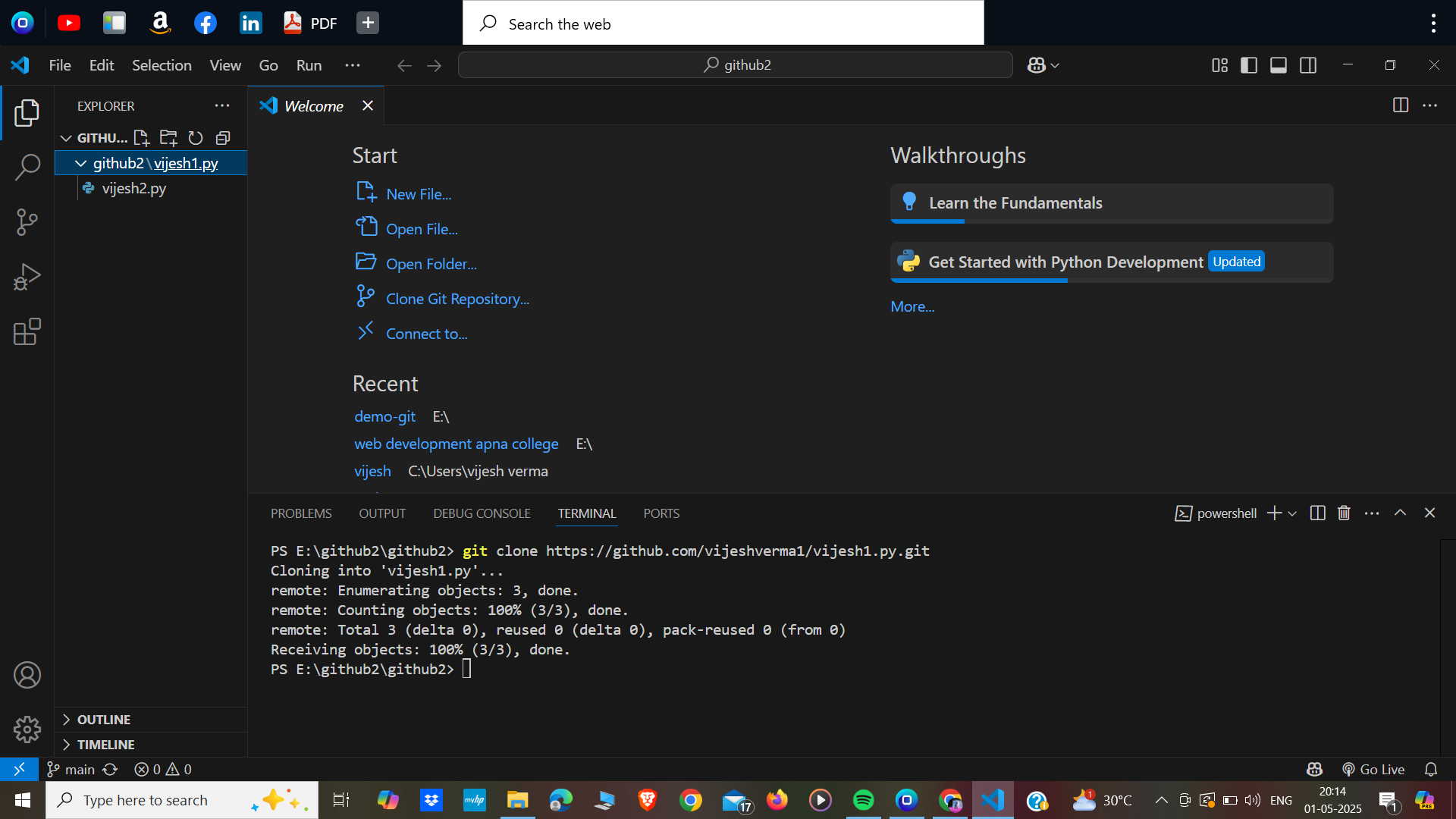
✅ Step 9: Clone the Repo in VS Code
Open VS Code, create a new folder, and open its terminal.
Now enter the command to clone the repository using the link you copied.
For example:
Type git clone followed by your repo link (in double quotes).
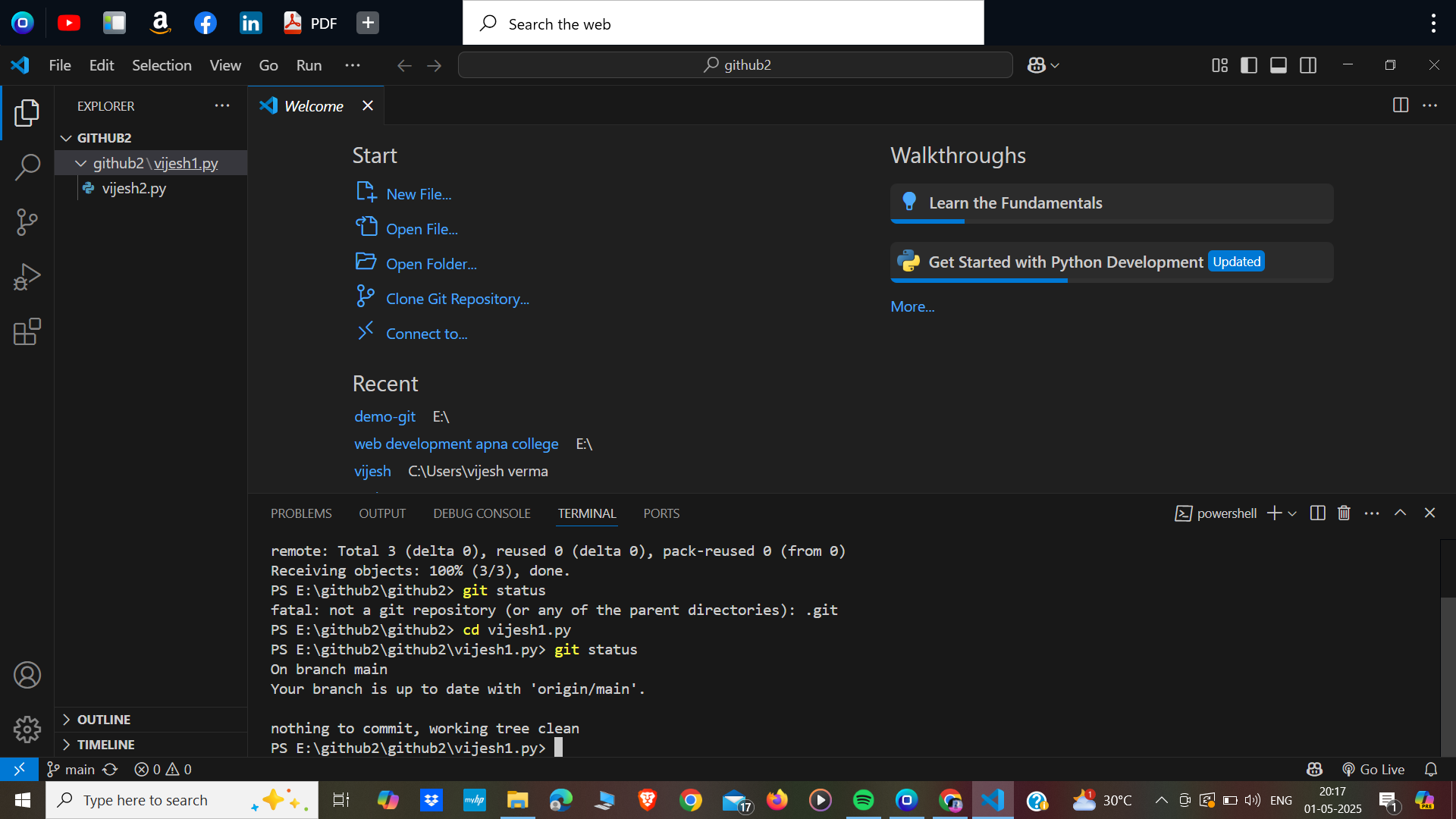
✅ Step 10: Navigate to Repo & Check Branch
Go into your repo folder using the cd command.
To check which branch you are working on, type git status.
Usually, it will be the main branch.
✅ Step 11: Modify & Push to GitHub
If you want to make changes locally and reflect them on GitHub:
Modify or add the file
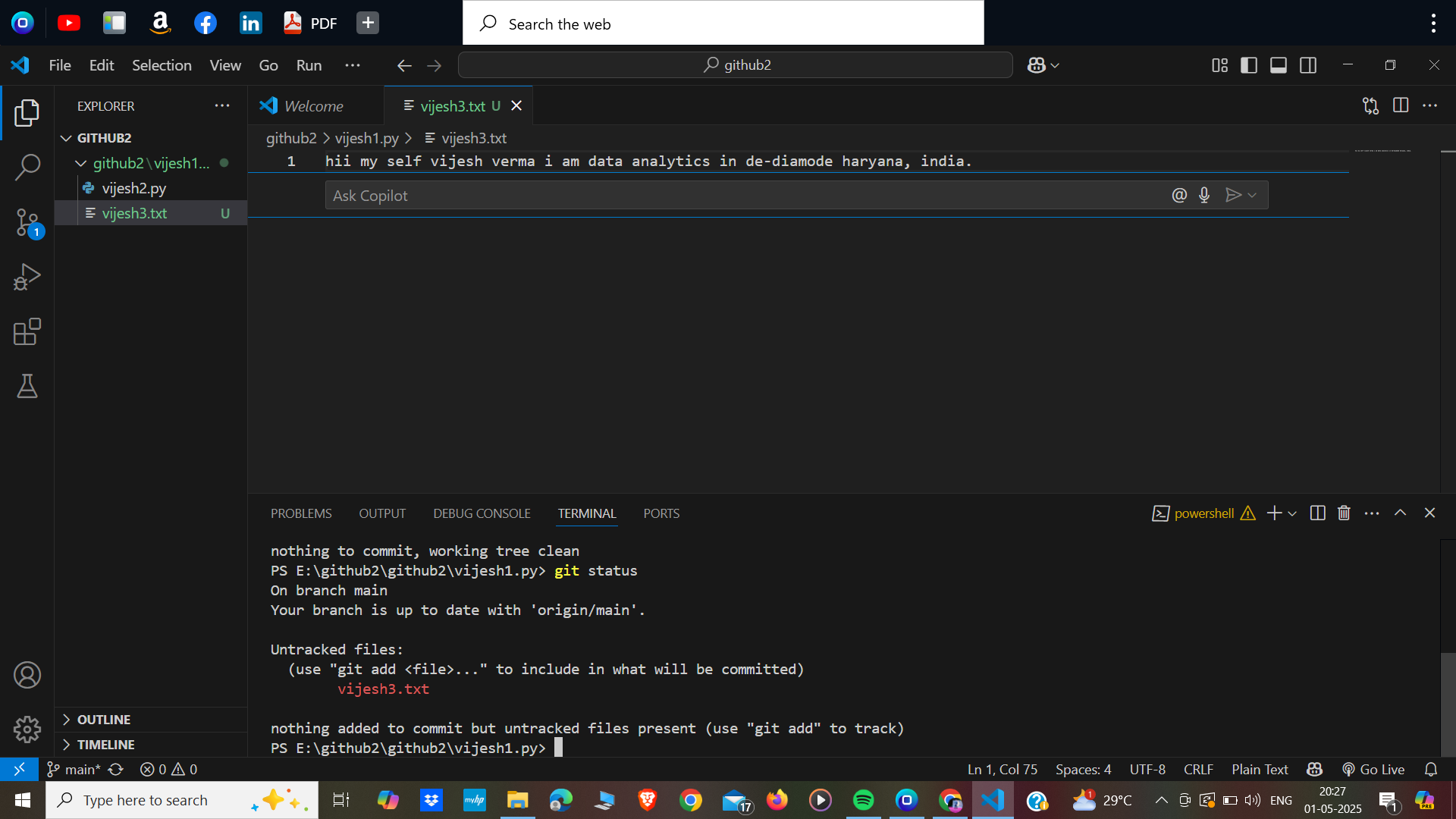
Then add the file using
git add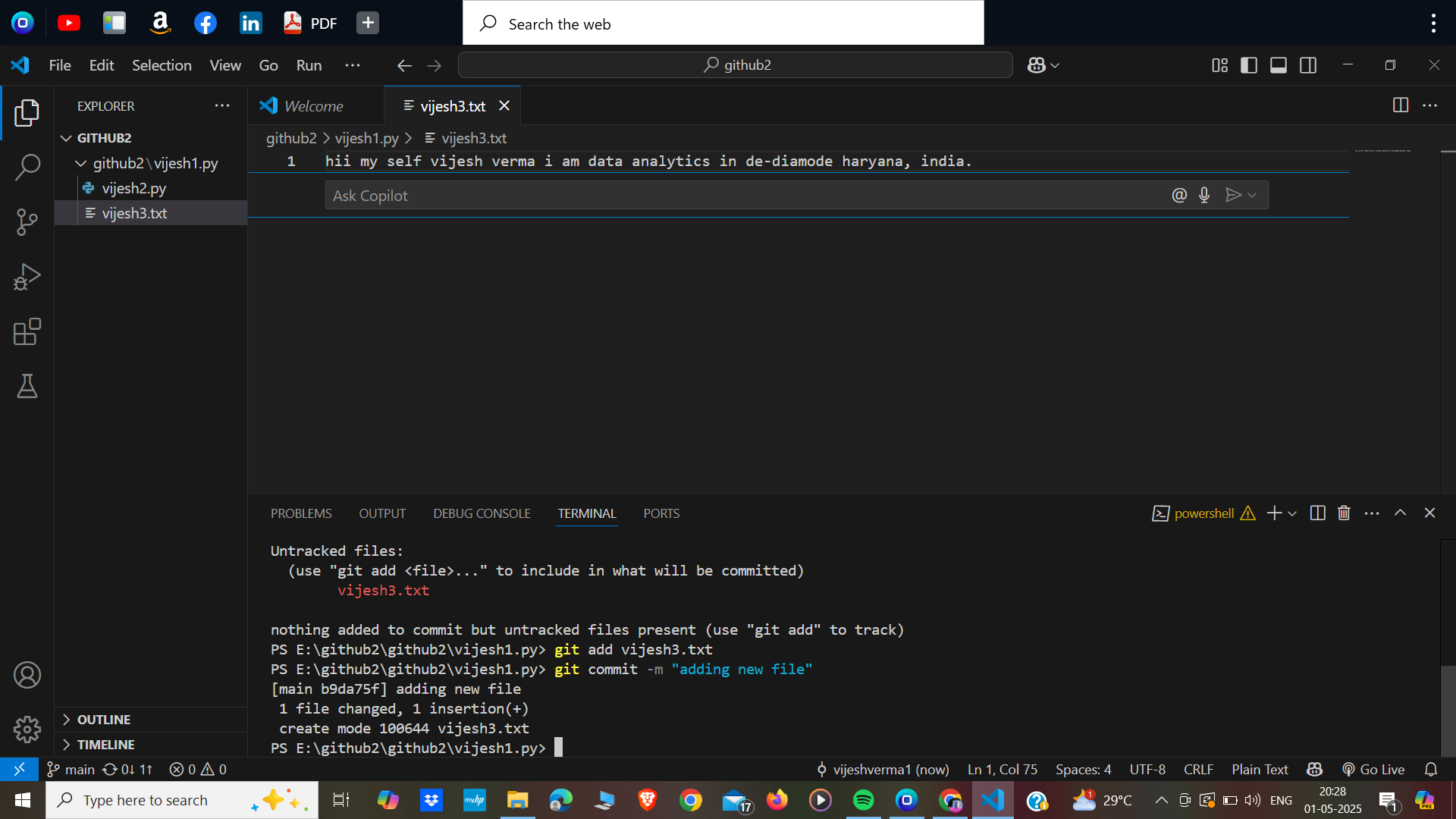
Commit your changes with a message using
git commit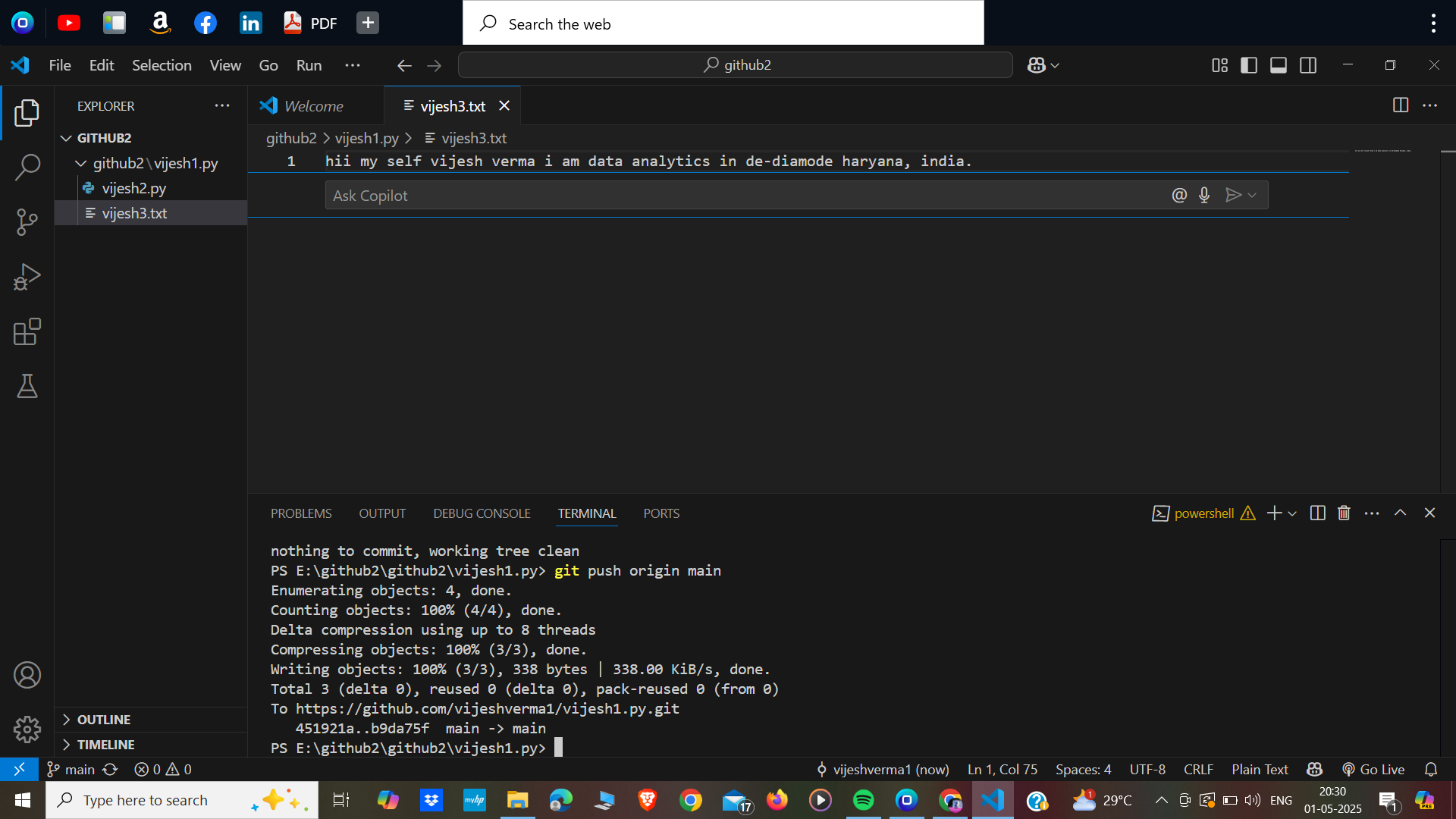
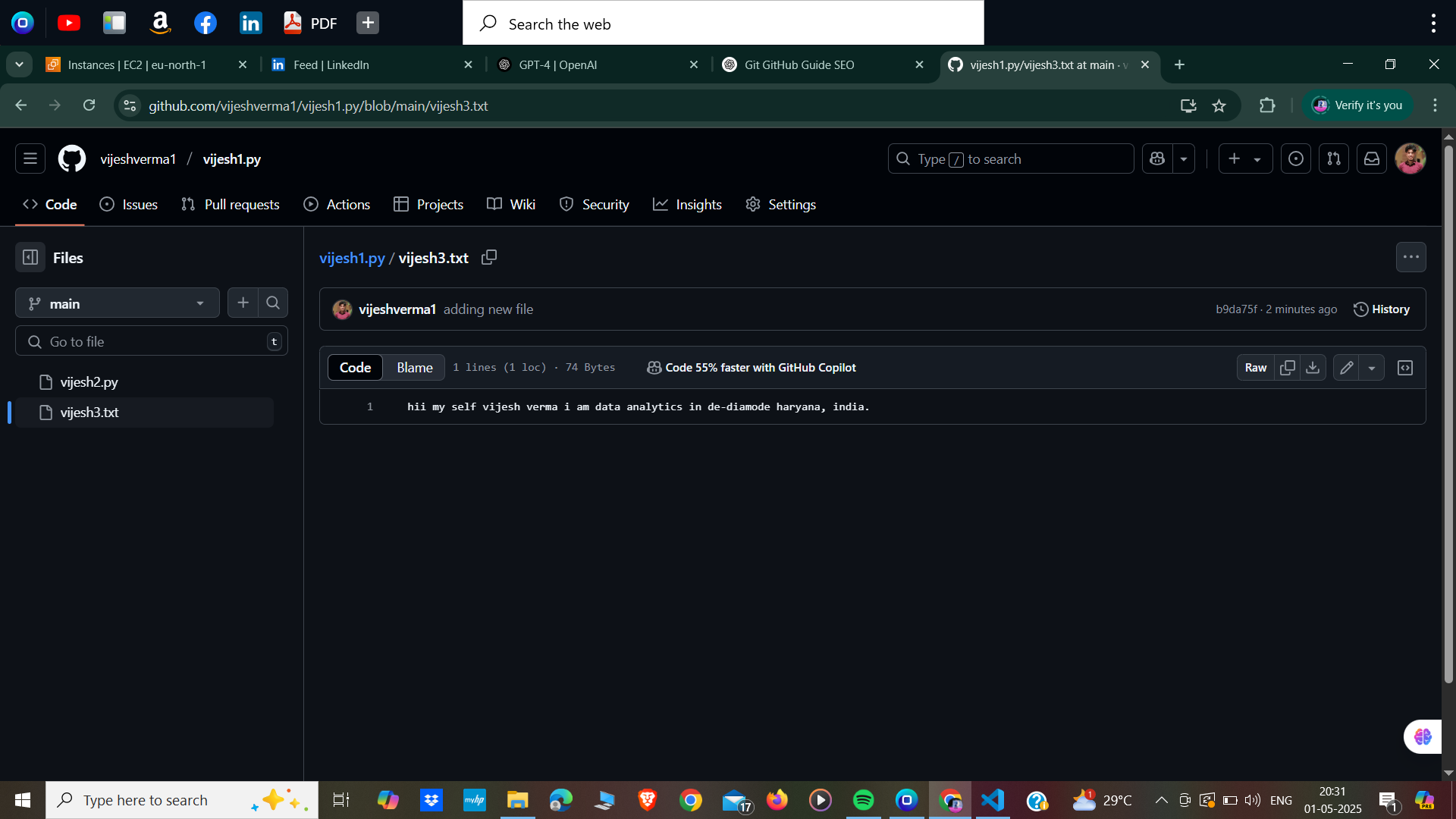
And finally, upload it to GitHub using
git push origin main
This will publish your changes online.
✅ Step 12: Pull Updates from GitHub
If someone else has updated the repository or you made changes from another system, and you want those latest files in your local system, use:
git pull origin main
This will download and sync the changes.